
Photo gallery: guide for gallery owners
How to pass the gallery on to guests and download the full set before the gallery expires.
Download all photos
On a computer
- Click the download icon (arrow pointing down) in the bar at the top of the gallery.
- Choose the High-Res size.
- Click Download.
On a phone
- Open the menu (three lines, top right) and choose to download the gallery.
- Choose High-Res.
- Tap Download.
Download one photo
On a computer
- Open the photo full screen.
- Click the download icon in the top right corner.
- Choose a size and click Download.
On a phone
- Open the photo.
- Tap the download icon in the bottom bar.
- Choose a size and tap Download.
Which size?
- High-Res: full files, maximum quality, for print.
- Web size: smaller files, long edge 2048 px, for the web and email.
Several photos or the whole gallery arrive as a ZIP file, one photo as a regular JPG file (on an iPhone straight to the Photos app).
You can send guests their own guide: marcinkrokowski.com/en/how-to-use-your-gallery/for-guests/
In this guide:
- Signing in
- Guest link
- Hiding photos
- Downloading everything
- Full resolution
- 60 days
- If something doesn’t work
Signing in
The gallery is private. Sign in with the email address the invitation was sent to. On your first visit the gallery suggests a password. Keep it or set your own. I don’t send passwords by email, because I don’t know yours.
Send attendees the guest link, not your invitation
You can share the gallery with attendees. You don’t need to download anything or send files around.
- Don’t forward the invitation email. That invitation is for you: it asks the reader to sign in with the address it was sent to. An attendee who gets it thinks they can’t download without your address, and gives up.
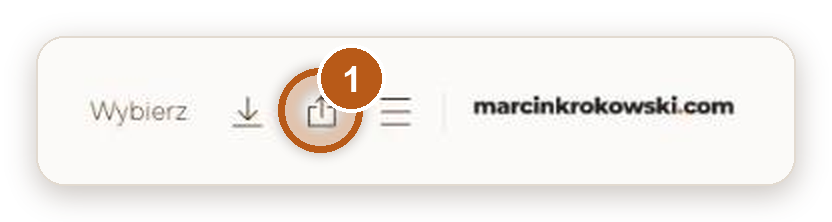
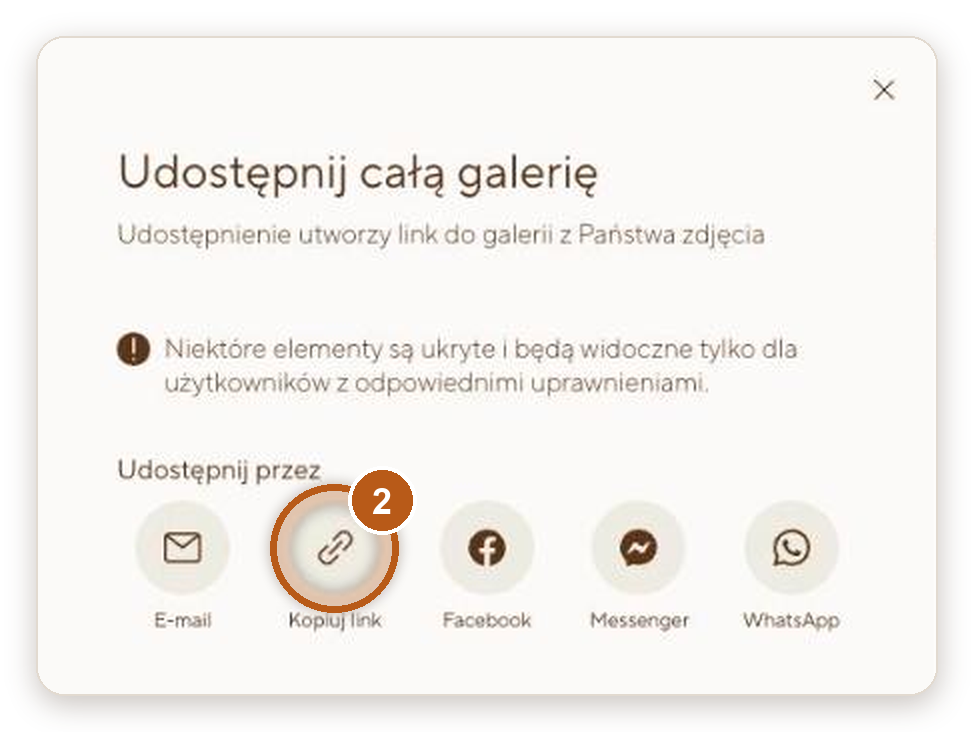
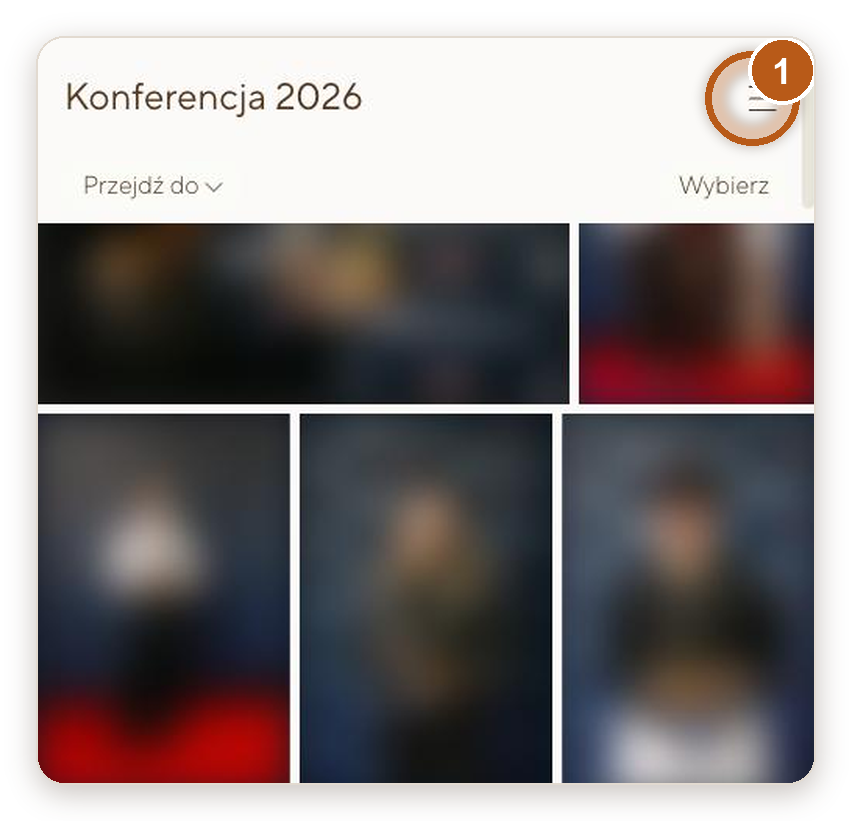
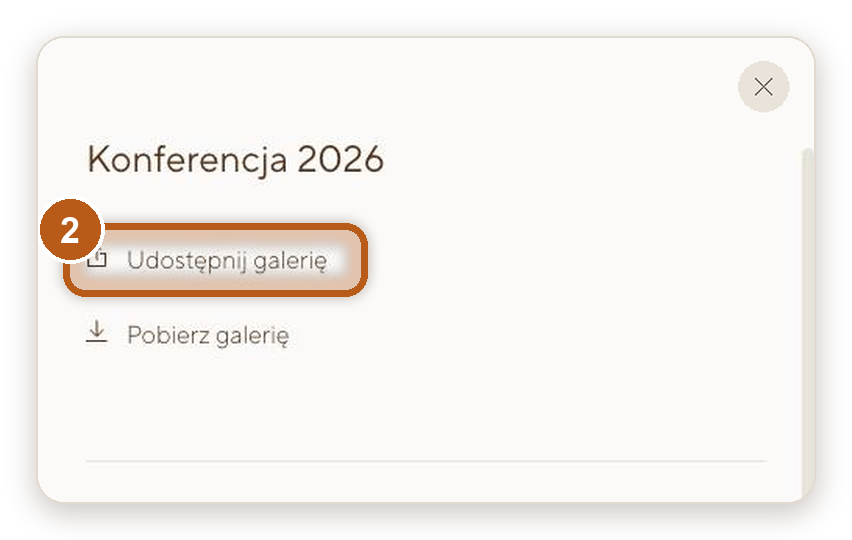
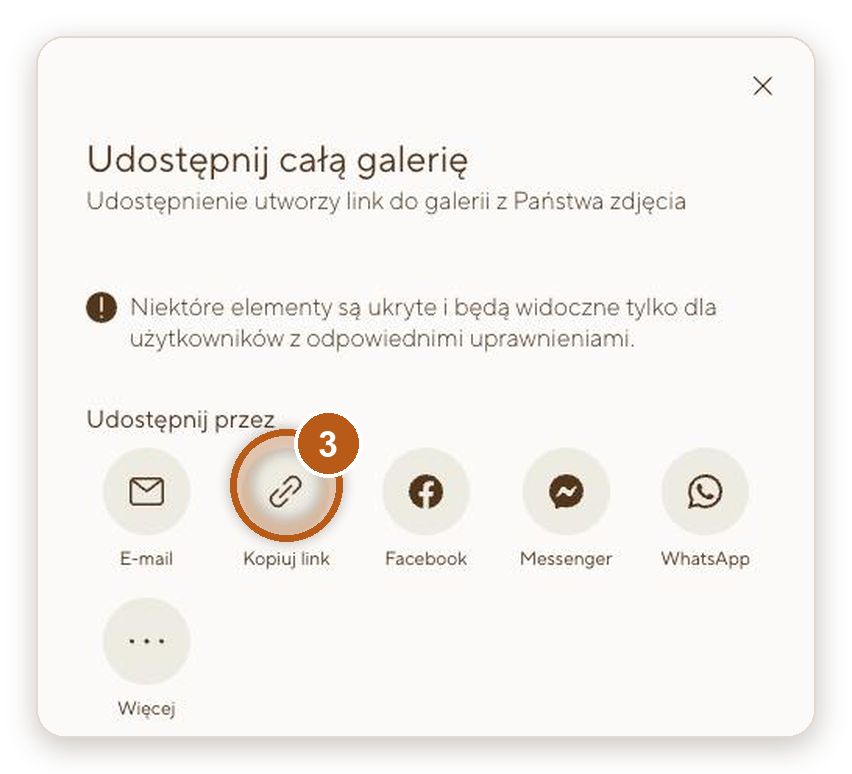
- Send the guest link. In the bar at the top of the gallery, click the share icon (a box with an arrow pointing up, next to the download icon). On a phone, open the menu (three lines, top right) and choose to share the gallery. In the share window, click Copy link and paste it to attendees by email, in a chat or on the event page. You can also send it straight by email, Messenger or WhatsApp.
- Anyone with the guest link can view and download photos without an account, in both sizes.
- Attendees should only see part of the gallery? For example the talks without the dinner. Write to me and I’ll prepare a link to selected parts of the gallery.
Before you send the link: hide what attendees shouldn’t see
Everyone with the link sees the whole gallery, or the parts we picked for that link. If a photo should stay with you only, hide it: hover over the photo and click the eye icon. Hidden photos are visible only to you and me.
With headshots this applies to attendees too: everyone with the link sees everyone’s portraits. If that should work differently, tell me before you send the link.
Hide photos before you send the link. After every change the gallery prepares the download package again, so the first full download after a change takes longer.
What you see and what guests see
| You see | Guests see | |
|---|---|---|
| Hidden photos | Yes, in the hidden photos tab | No |
| Eye icon (hiding photos) | Yes | No |
| “Skip” window when downloading | No, because you are signed in | Yes |
When you share the gallery, it warns you that hidden photos will only be visible to people with permission.
Downloading the whole gallery
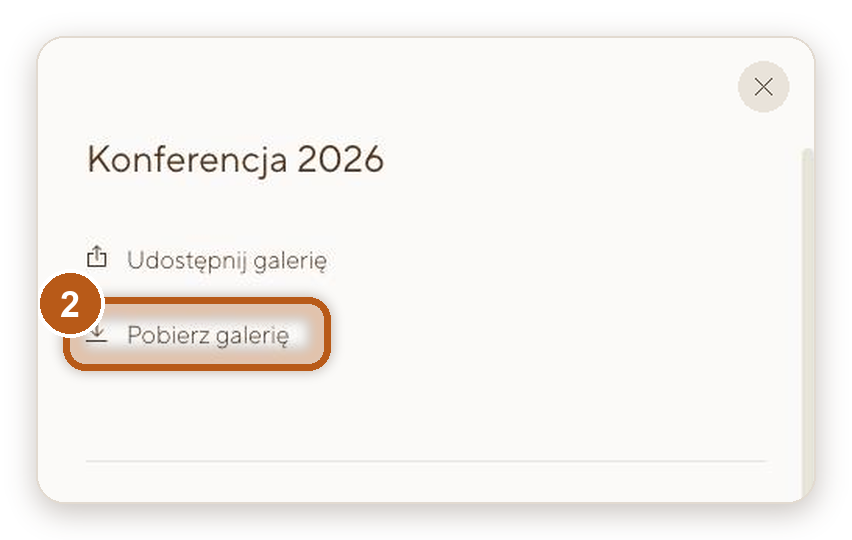
- Click the download icon (arrow pointing down) in the bar at the top of the gallery. This downloads the whole gallery. On a phone, open the menu (three lines, top right) and choose to download the gallery. If you only want some photos, click Select first and tick them.
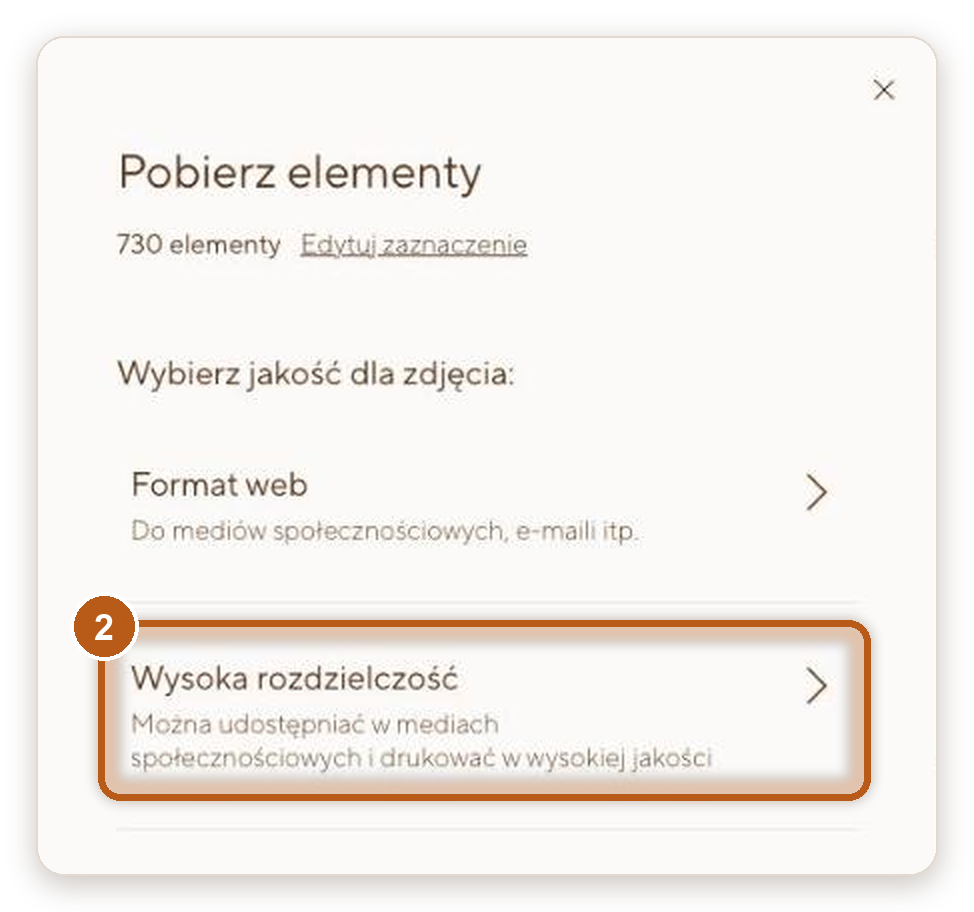
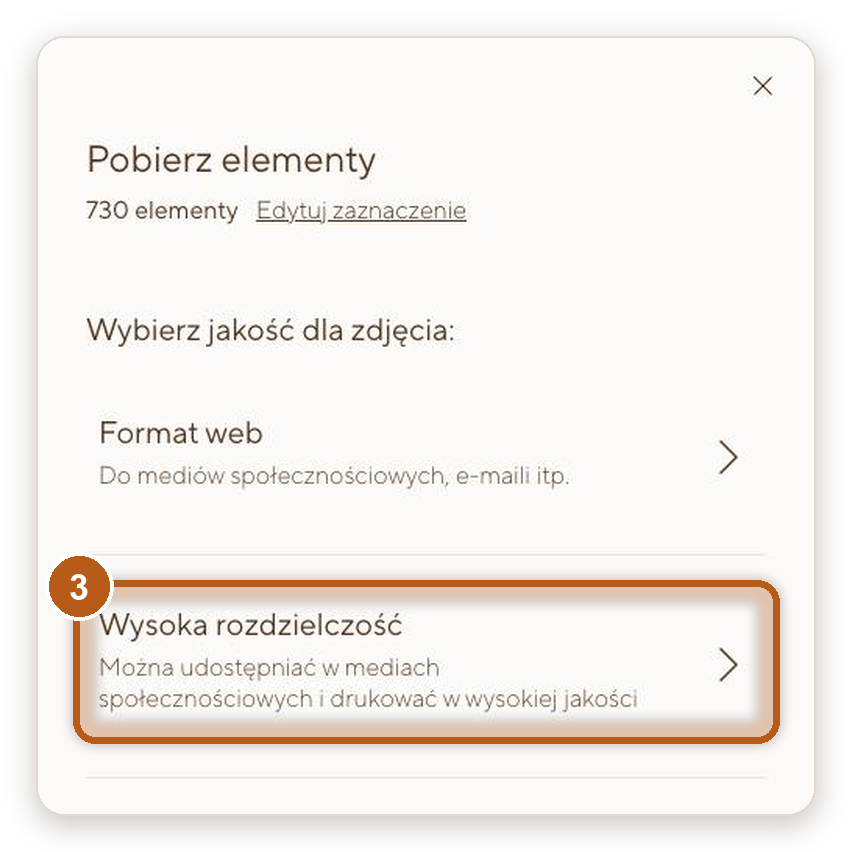
- Choose a size: Web size or High-Res.
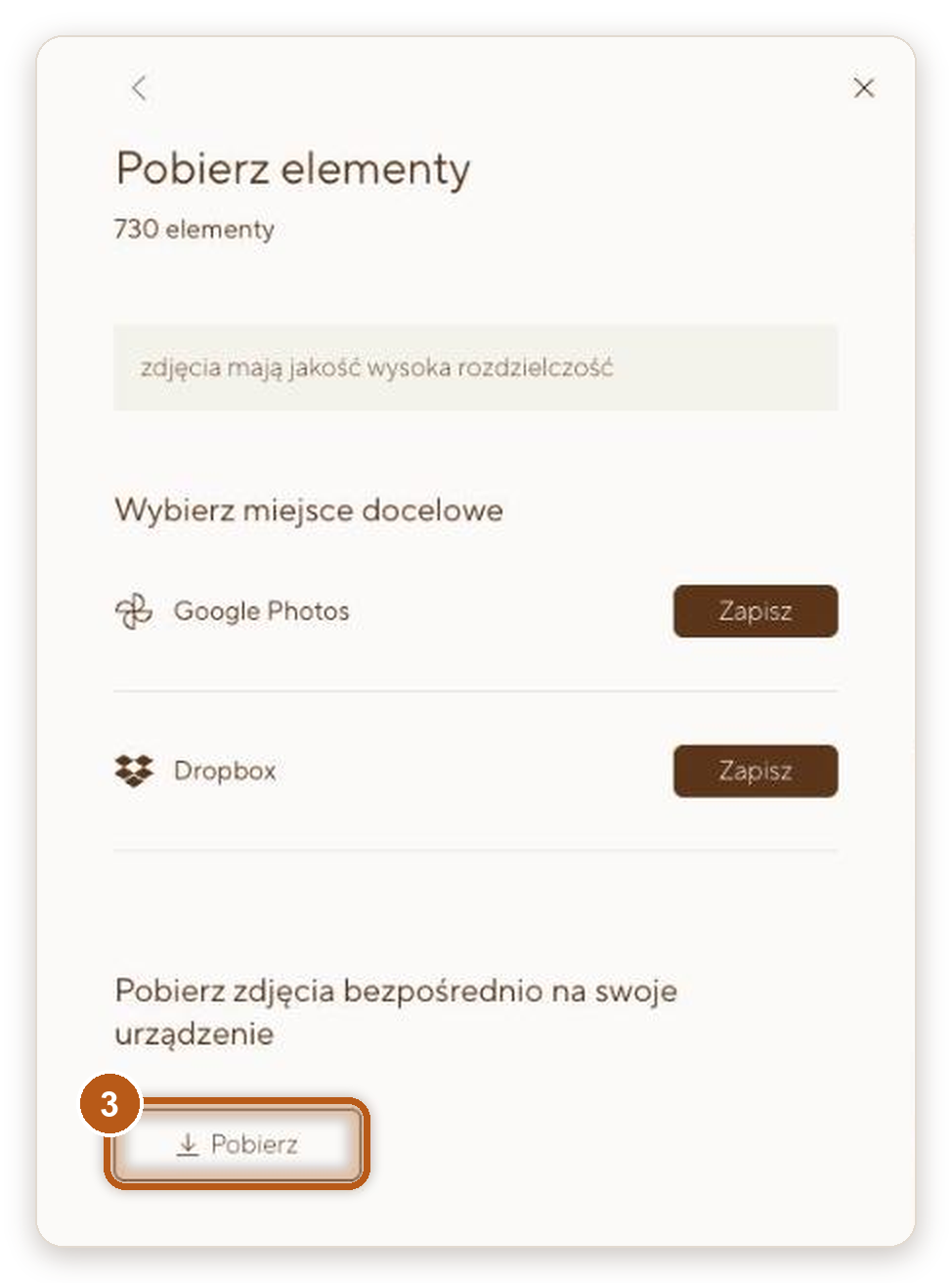
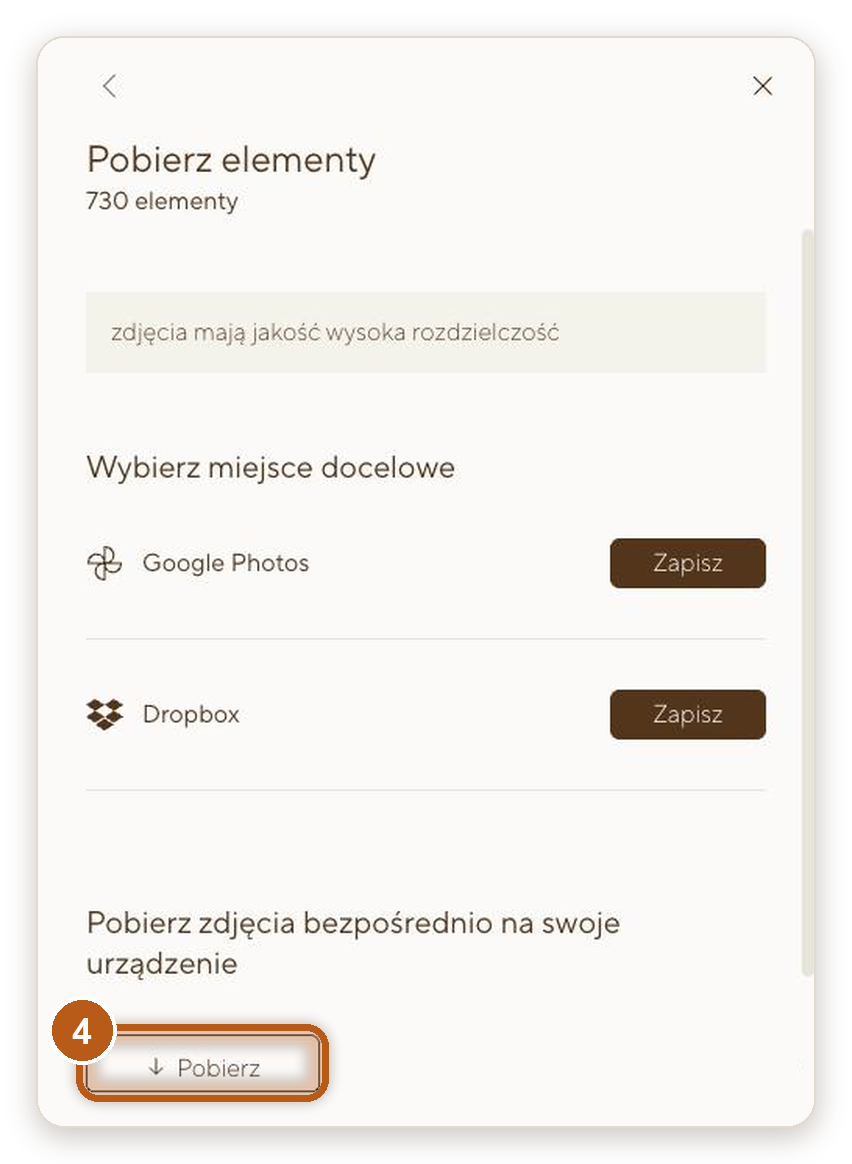
- Click Download. You can also save the photos straight to Google Photos or Dropbox.
Several photos or the whole gallery arrive as one ZIP file. Unzip it after downloading.

Two sizes: take full resolution
- High-Res: full-size files for print, press, reports and your website. Use this as your main set.
- Web size: smaller files, handy for social media and email from your phone.
Before the gallery expires, download the full set in High-Res. You can always make a smaller file from full resolution, but not the other way round.
Need the smaller files in a different size, for example for a specific platform? Write to me and I’ll change the web size in your gallery.
The gallery is available for 60 days
The gallery stays online for 60 days from the day I publish it. You’ll get an email reminder a week and a day before it closes. Need more time? Write to me before then and I’ll extend it.
After that, the gallery goes offline, including for people with the guest link. The photos aren’t gone. If you need them later, write to me and I’ll restore the gallery. For older events this takes a day or two.
If something doesn’t work
- I can’t sign in (client). Use exactly the email address the invitation was sent to. You can reset your password from the sign-in screen, sign in with Google or Apple, or ask for a password-free sign-in link.
- I didn’t get the invitation. Check your spam folder and add the sender to your contacts. Still nothing? Write to me and I’ll check the address and send the invitation again, or give you the direct link.
- The gallery has expired. After 60 days the gallery goes offline. The organiser can ask me to extend it. Once I do, it’s usually back within about 20 minutes.
Still not working?
Email ko*****@*************ki.com with the name of the gallery.